How to create a WhatsApp bot: a step-by-step guide (2026)
How to create a WhatsApp bot step by step: choose a connection, receive messages by webhook, decide replies, send safely and test with one chat first.
Short answer
To create a WhatsApp bot, choose how it connects (Meta’s official Cloud API or a linked-device connection to an existing number), set up a webhook that receives messages, write the logic that decides each reply, and send replies through the API with a unique request key.
Test with one chat, add a human handoff, and only then widen to real conversations.
What is a WhatsApp bot?
A WhatsApp bot is software connected to a WhatsApp number that reads incoming messages and replies, or takes an action, without a person typing. It can be a simple menu, a keyword responder or an AI agent. What makes it a bot is the connection: some service has to deliver messages to your code and accept replies from it.
WhatsApp offers no plug-in system inside the app itself. Every bot connects through Meta’s official WhatsApp Business Platform or through a linked-device connection that works like WhatsApp Web. That choice comes first.
Step 1: choose how the bot connects
Use a test number or a test chat while you build. Never point an unfinished bot at real customers or large groups.
| Connection | Use it when | Watch out for |
|---|---|---|
| Official WhatsApp Business Platform (Cloud API), directly or through a provider | You need policy-compliant 1:1 messaging at scale, templates and marketing to opted-in customers | Business verification, template approval, per-message charges, and groups limited to API-created groups of up to 8 people |
| Managed linked-device service such as SuperSkope | You want to keep your existing number, its chats and its regular groups, with a team inbox alongside the bot | Not official; WhatsApp’s terms prohibit automated and bulk messaging, so keep the bot reply-first |
| Self-hosted engine such as WAHA, Baileys or whatsapp-web.js | You have engineers to run, secure and monitor sessions yourself | Same Terms of Service risk, plus your own uptime, upgrades and security |
| No-code chatbot builder | A menu bot on a new number is enough | Limited flows and lock-in to the builder’s pricing |
Step 2: receive messages with a webhook
Your bot needs an HTTPS endpoint that the connection calls when something happens. Treat every incoming request as untrusted until it is verified.
- Read the raw request body before parsing JSON.
- Verify the signature header with your signing secret and reject old timestamps. SuperSkope signs the timestamp plus the exact body with HMAC SHA-256; your receiver checks it and rejects timestamps more than five minutes old.
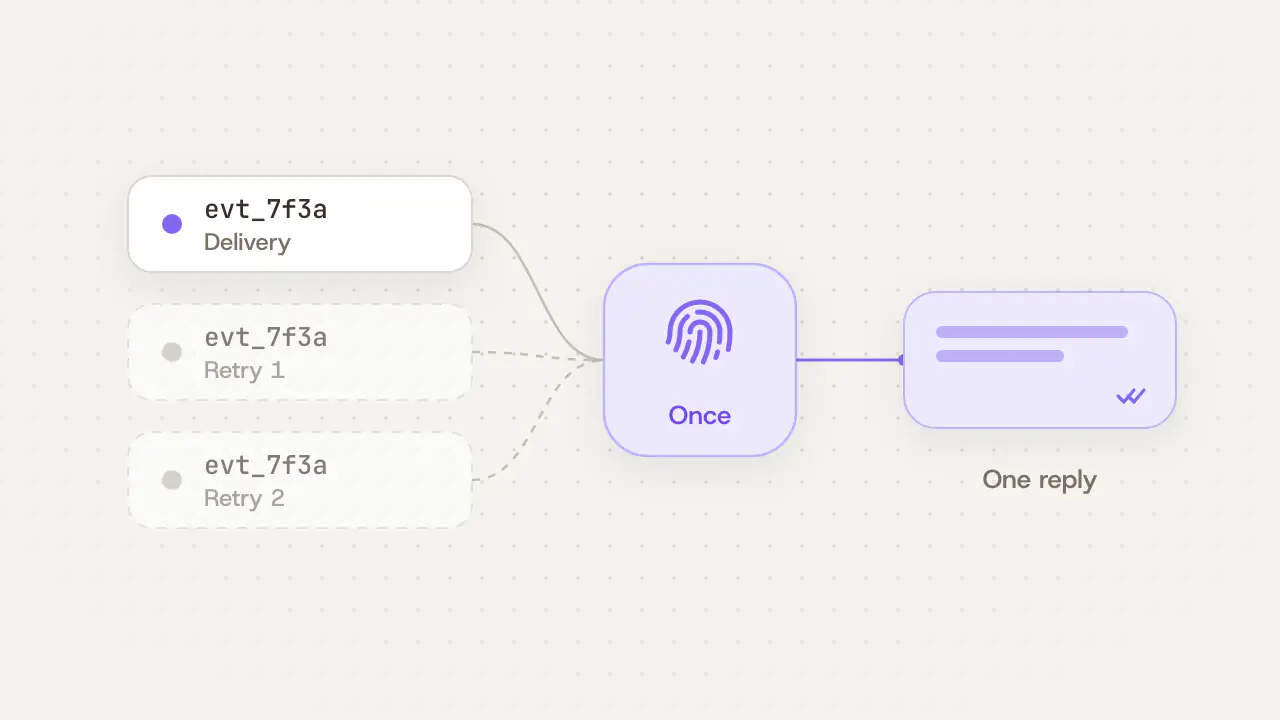
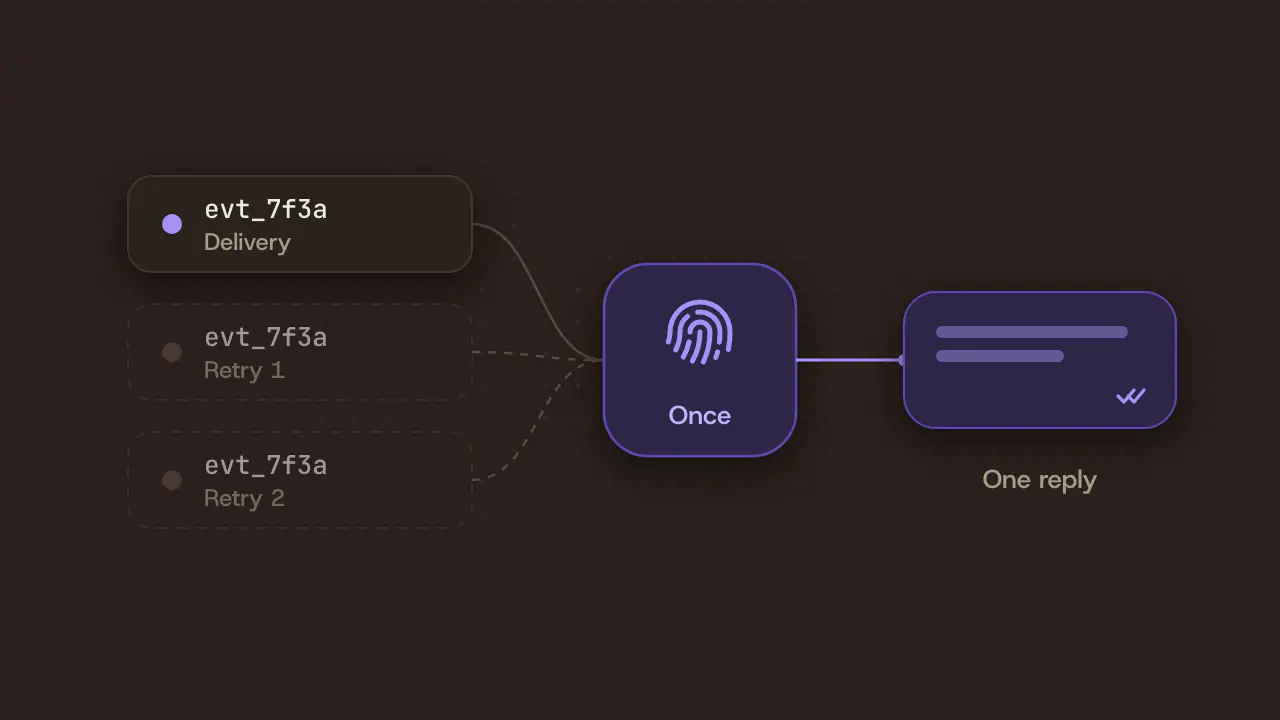
- Store the event ID durably. Webhooks are delivered at least once and can arrive out of order, so the same message may come twice.
- Acknowledge quickly with a 2xx response and do the real work in a background job.
Step 3: decide the reply
Keep the decision separate from the transport. A small function takes the message and returns either nothing, a reply, or a handoff. Start with rules: greetings, opening hours, a handful of keywords. Add a language model later for the questions rules cannot handle, and give it only approved information to answer from.
Decide also when not to reply: messages in groups that do not mention the bot, conversations a person has taken over, and anything outside the chats you enabled.
Step 4: send the reply safely
A send is a real-world action. Give each intended reply a stable idempotency key, derived from the event you are answering, so a retry after a timeout returns the original result instead of sending again. If the result is unknown, stop and inspect before doing anything else. With SuperSkope, a reply is one call to the customer API, using a key that only has access to the chats the bot serves.
curl -X POST "https://api.superskope.com/api/v1/chats/$CHAT_ID/messages" \
  -H "Authorization: Bearer $SUPERSKOPE_API_KEY" \
  -H "Idempotency-Key: reply-$EVENT_ID" \
  -H "Content-Type: application/json" \
  -d '{"type":"text","text":"Thanks, we have your request. A teammate will confirm by 6 pm."}'
Copy-only example. This page never runs a request or asks for a credential.
Step 5: test with one chat, then widen
- Enable the bot for a single internal test chat.
- Send the ten most common customer questions and a few strange ones.
- Kill the receiver mid-request and confirm no duplicate reply appears.
- Take over the chat as a person and confirm the bot goes quiet.
- Enable one low-risk real conversation, review every reply for a few days, then add more.
Step 6: add a human handoff
Every bot needs an exit. When the customer asks for a person, when the bot has no answer, or when the topic is a complaint or a payment, the bot should say a teammate will reply, assign the chat and stop. Resuming the bot should be a deliberate action by staff, never something the model decides.
Mistakes that get WhatsApp bots blocked
Most bot problems on WhatsApp come from behaviour that looks like spam. WhatsApp’s help center says accounts that send automated or bulk messages can be banned, and user reports weigh heavily.
- Messaging people who never wrote to you, or importing a contact list and greeting everyone.
- Adding many people to groups in a burst.
- Retrying failed sends in a loop, which can turn one message into five.
- Replying to every message in a busy group instead of only when addressed.
- Running the bot on someone’s personal number without their knowledge.
For teams: building the bot on SuperSkope
SuperSkope connects your existing number as a WhatsApp linked device, the same way WhatsApp Web works. It is not the official WhatsApp Business Platform and is not affiliated with WhatsApp or Meta. It gives your bot a scoped API key limited to chosen conversations and actions, signed webhooks, a pull-agent API for AI agents, a typed Node SDK and a shared inbox where staff can take over.
The 14-day free trial includes one number, unlimited team members, 6,000 bulk messages, 200 AI credits and the API, with no card. You can use the built-in AI, bring your own model, or both.
Next step
Write the bot’s decision function on paper first: the five things it answers, the three things it hands off and the chats it may touch. Then build the receiver, the send call and the handoff before writing a single prompt.
Frequently asked questions
Can I make a WhatsApp bot without coding?
Yes, with a no-code chatbot builder on the official platform, or a workflow tool such as n8n, Zapier or Make. You still choose a connection, and you still need to think about duplicates, handoff and message limits. No-code tools hide the code, not those decisions.
Can I make a bot on my personal WhatsApp number?
Technically, linked-device tools can connect a personal number. WhatsApp’s terms prohibit automated and non-personal use, so a bot on a personal number risks restriction, and it mixes private and business chats. Use a separate business number for anything customer-facing.
Is it free to create a WhatsApp bot?
The software can be free, for example self-hosted WAHA Core, but running it is not: you pay for a server, your time, and model calls if it uses AI. Meta charges per message on the official platform. Managed services charge a subscription, and some offer a free tier.
Can a bot add itself to a WhatsApp group?
Not through the official API, which only manages groups it created, capped at 8 participants, and only by invite link. A bot on a linked-device connection acts as your number, so it is in whichever groups that number is in. Joining or adding people should still follow group admin rules.