WhatsApp webhooks: setup, signatures, retries and troubleshooting
Set up a WhatsApp webhook: verify the URL, check signatures, handle retries and duplicates, and fix a WhatsApp webhook that is not receiving messages.
Short answer
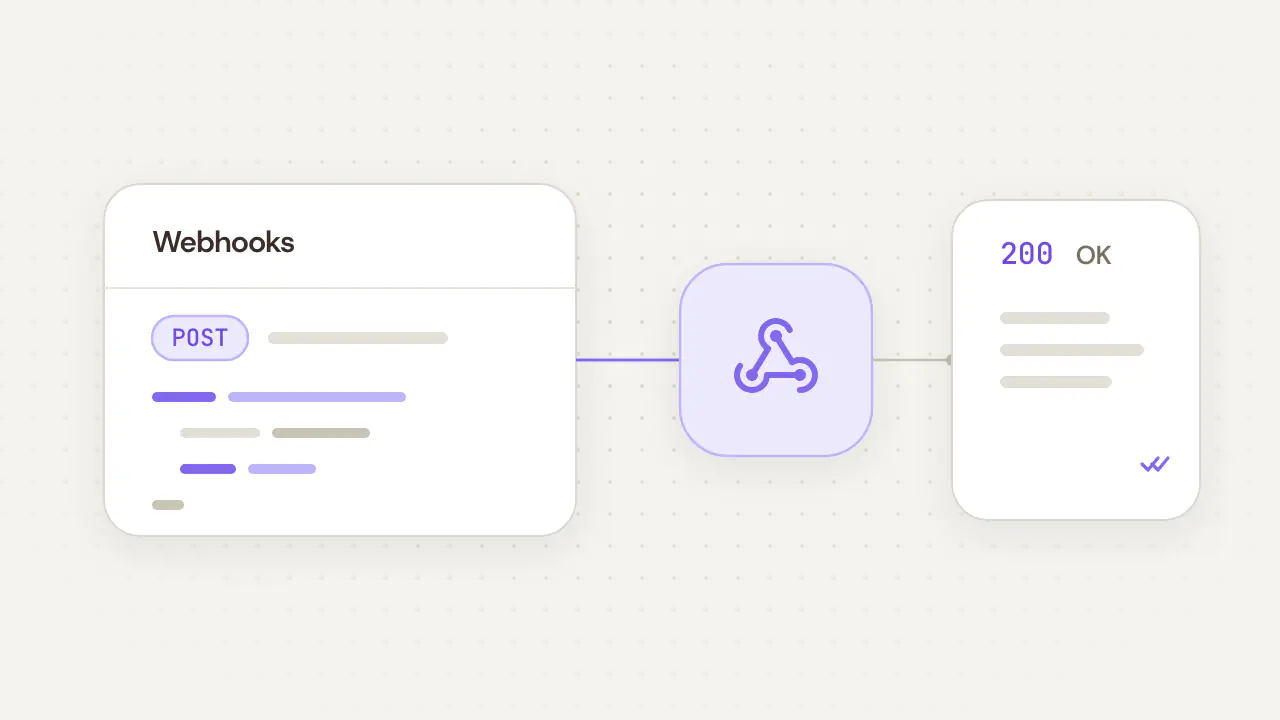
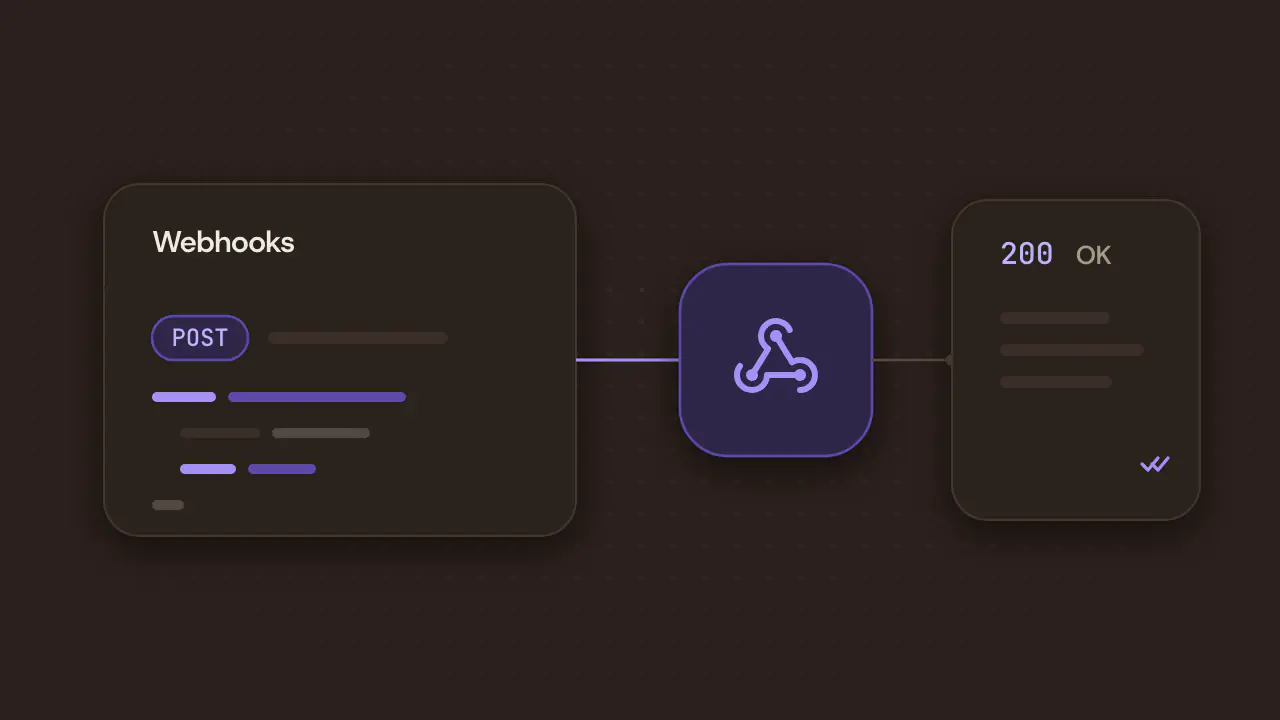
A WhatsApp webhook is your HTTPS endpoint that receives incoming messages and delivery statuses. On Meta’s Cloud API, answer the verification GET with hub.challenge, verify each POST’s X-Hub-Signature-256 HMAC with your app secret, store the event and return 200.
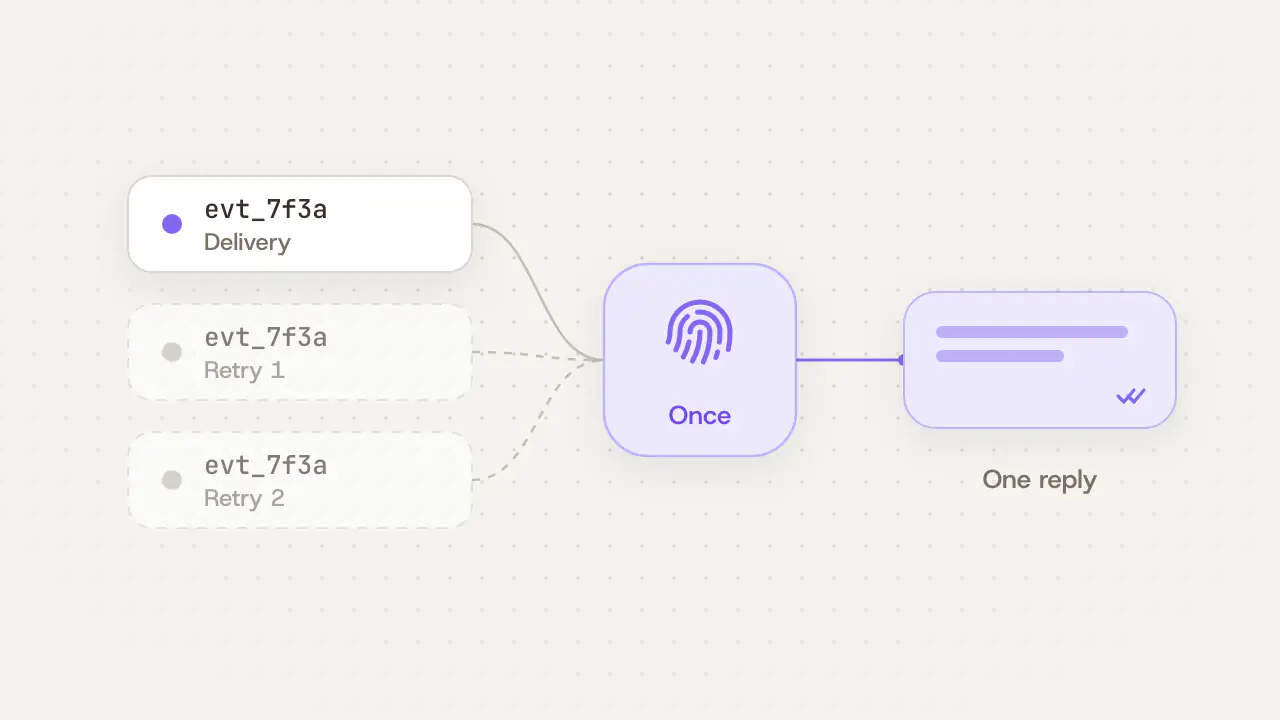
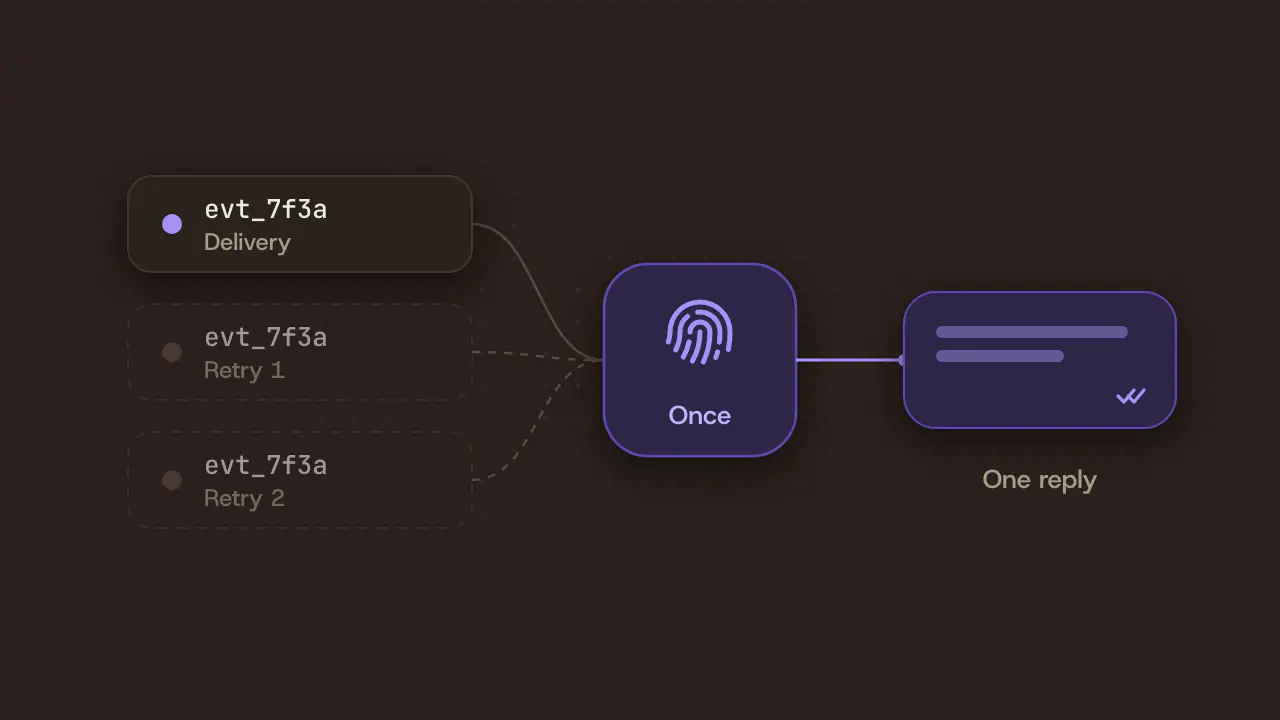
Meta retries failed deliveries for up to seven days, so deduplicate by ID.
What is a WhatsApp webhook?
A WhatsApp webhook is an HTTPS endpoint on your server that the platform calls whenever something happens: a customer sends a message, a message you sent is delivered or read, a template is approved, or your account’s limits change. Your webhook URL is the address you register for those calls.
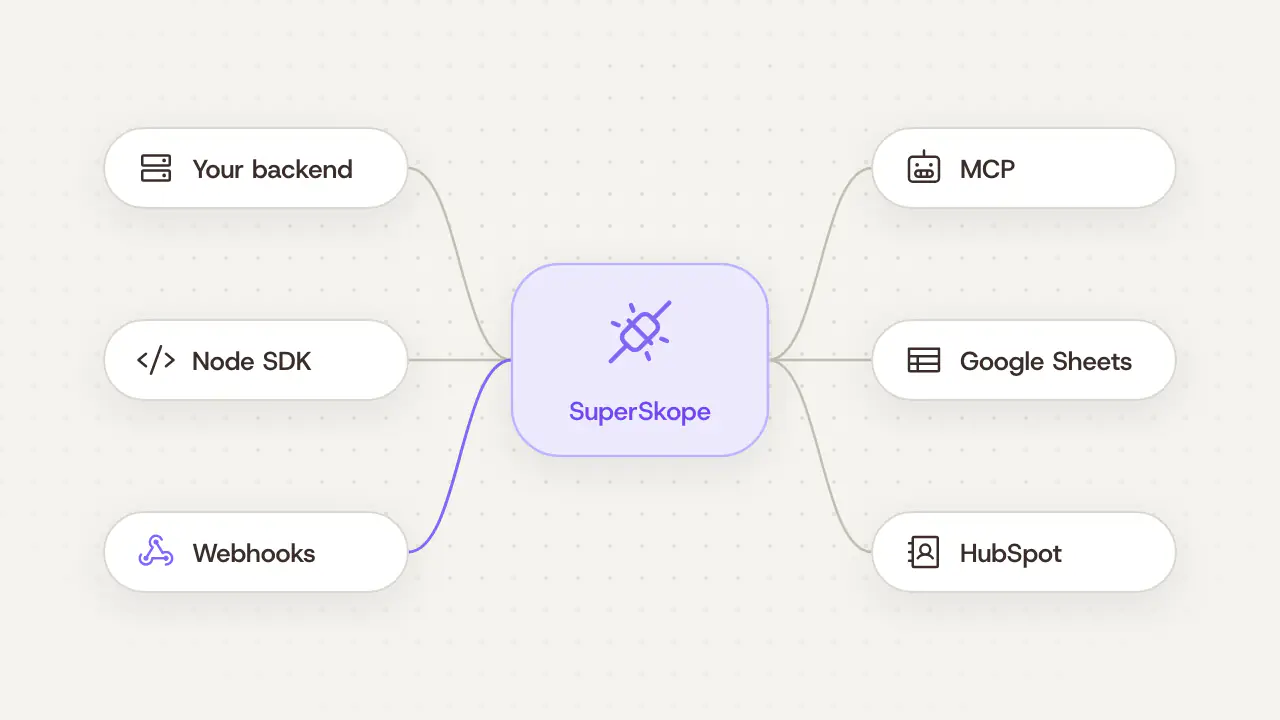
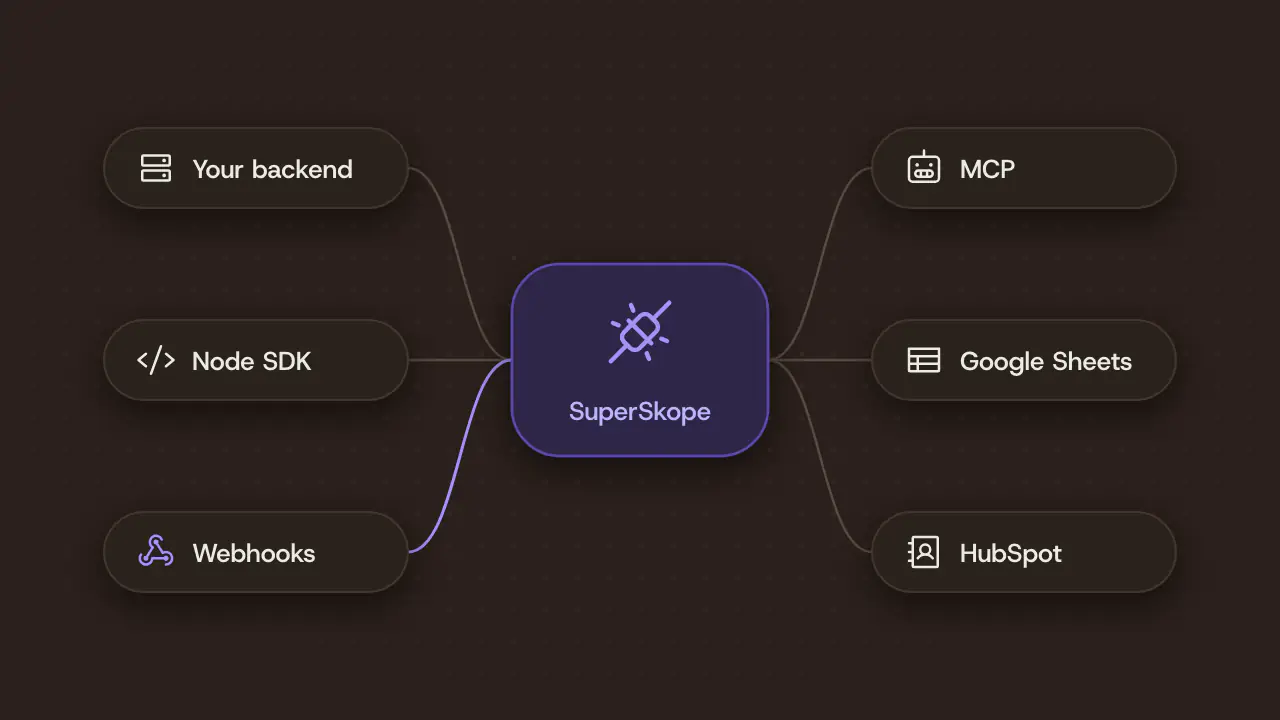
On Meta’s WhatsApp Business Platform, webhooks are not optional. The content of every incoming message and every delivery status reaches you only by webhook, and Meta offers no API to fetch past webhook data, so whatever you miss is gone. SuperSkope, a linked-device API, also sends signed webhooks but keeps message content behind its scoped API.
How to set up a WhatsApp webhook on the Cloud API
- Host an endpoint on a public HTTPS URL with a valid certificate. Self-signed certificates are not supported.
- Handle the verification GET: if hub.mode is subscribe and hub.verify_token matches the string you chose, respond 200 with the hub.challenge value.
- Handle event POSTs: verify the X-Hub-Signature-256 header, store the payload, respond 200.
- In the App Dashboard, open the WhatsApp use case’s Configuration panel, enter the callback URL and verify token, and save. Meta sends the GET at this point.
- Subscribe to the fields you need. Most integrations need messages, which carries both incoming messages and outgoing statuses; add message_template_status_update and account_alerts for operations.
- Make sure your app is in Live mode and has the whatsapp_business_messaging permission. Some webhooks are not sent to apps in Dev mode.
How to verify the X-Hub-Signature-256 header
Meta computes HMAC-SHA256 of the exact request body using your app secret and sends it as sha256=<hex>. Compute the same over the raw bytes you received, before any JSON parsing or reformatting, and compare in constant time. A mismatch means the request did not come from Meta or the body was changed. Meta also supports mutual TLS for webhooks if you want transport-level proof.
// Official WhatsApp Cloud API (Meta): signature check in Node.js
import crypto from 'node:crypto';

export function isFromMeta(rawBody, signatureHeader, appSecret) {
  const expected = Buffer.from('sha256=' + crypto.createHmac('sha256', appSecret).update(rawBody).digest('hex'));
  const given = Buffer.from(signatureHeader || '');
  return given.length === expected.length && crypto.timingSafeEqual(given, expected);
}
Copy-only example. This page never runs a request or asks for a credential.
What a WhatsApp webhook payload contains
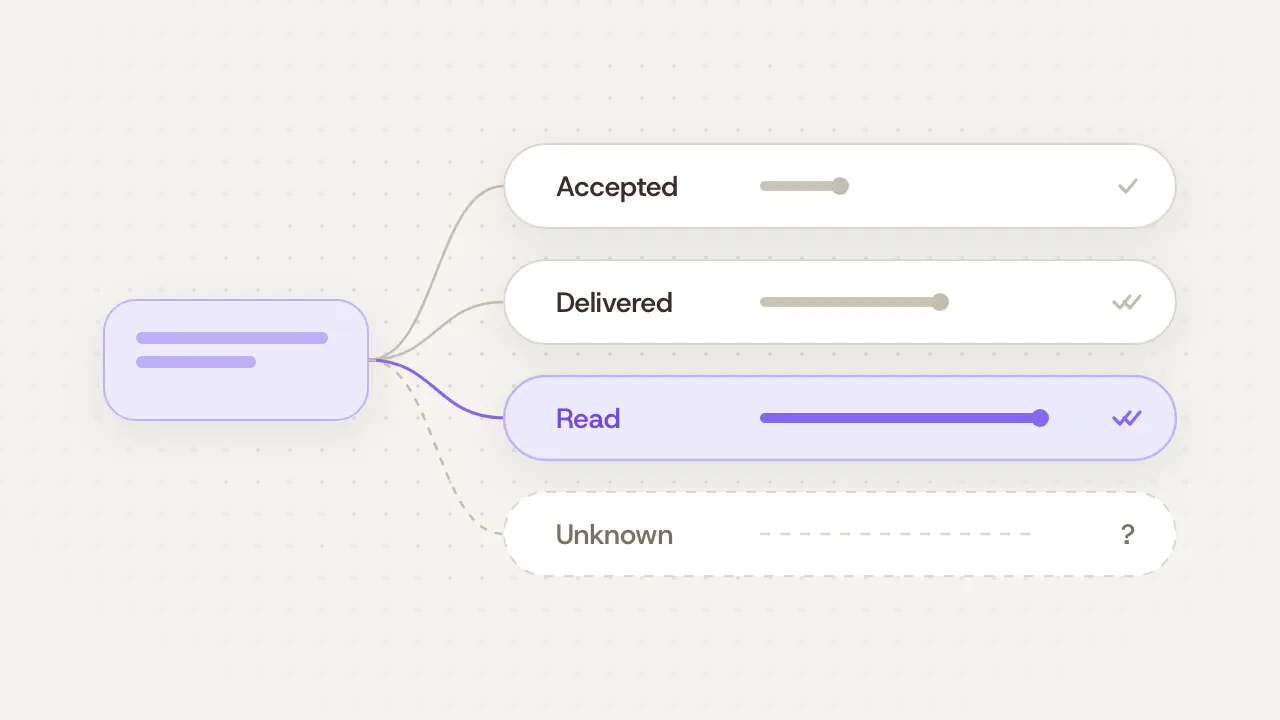
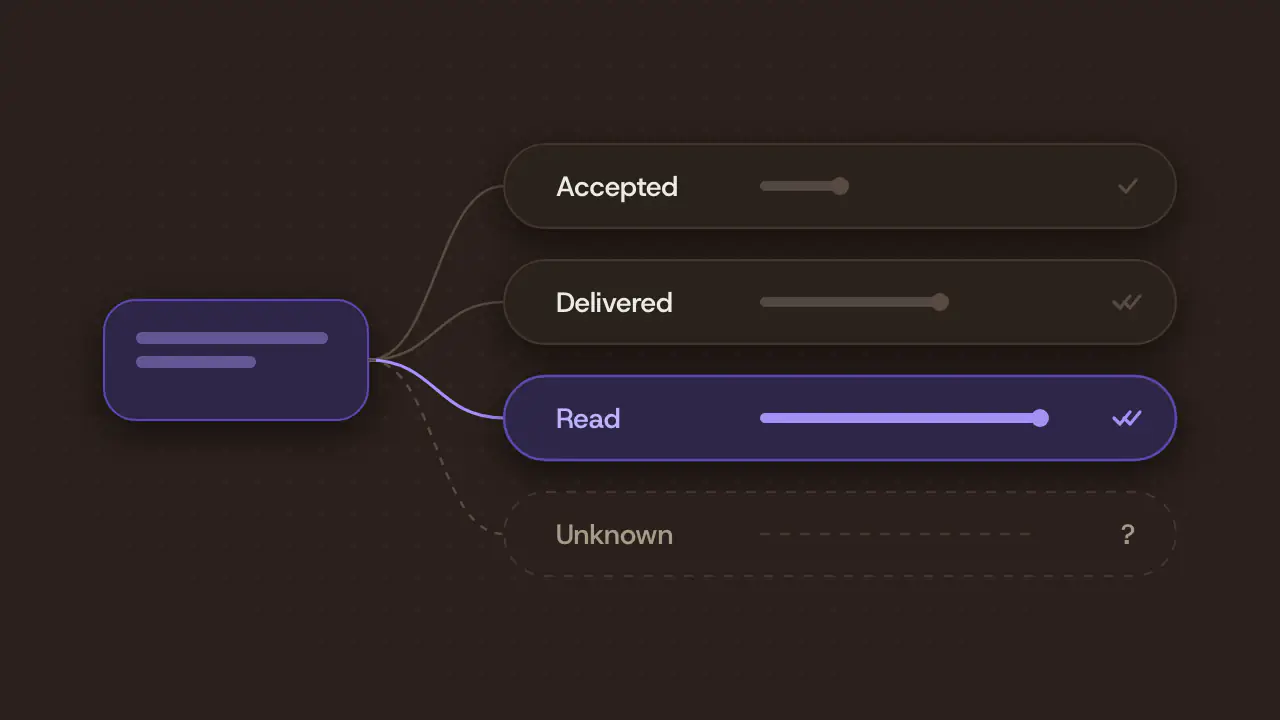
Every Cloud API webhook has an object of whatsapp_business_account and an entry array; each change names its field. For the messages field, value.messages holds incoming messages and value.statuses holds sent, delivered, read and failed updates for messages you sent, each with the wamid you stored when sending.
Meta now identifies users with a business-scoped user ID in fields such as user_id and from_user_id. If a user has adopted a WhatsApp username, phone fields such as wa_id and from may be omitted, so key your customer records on the user ID as well as the number.
Retries, duplicates and ordering
If your endpoint returns anything other than 200, or cannot be reached, Meta retries with decreasing frequency for up to seven days. Retries go to every app subscribed to the account, which can produce duplicate notifications. Meta may batch up to 1,000 updates in one POST, though batching is not guaranteed, and payloads can be up to 3 MB.
Meta asks webhook servers to keep median latency under 250 milliseconds, with fewer than 1% of requests over one second, and to handle three times your outgoing message rate in status webhooks. The practical design is the same everywhere: verify, write the raw event to durable storage keyed by its ID, respond 200, and process from a queue.
Webhooks on SuperSkope
SuperSkope webhooks are configured by a workspace owner, one HTTPS URL per events-enabled API key. Each delivery is signed: HMAC-SHA256 over timestamp + "." + body, with the Unix timestamp in X-SuperSkope-Timestamp and the hex signature in X-SuperSkope-Signature. Reject timestamps more than five minutes old, compare in constant time and deduplicate event IDs.
Events carry metadata only, such as message IDs, receipt states, reactions and group participant changes, never message bodies or media URLs. Use the scoped message API to read content the key is allowed to see. Failed deliveries are retried up to eight times over about 21 minutes, with an eight-second deadline per attempt; exhausted deliveries are shown to owners. You can also pull the same events from a cursor-based feed, retained for seven days.
A valid signature proves the event came from SuperSkope. It is not permission to send a message or change a group; repeat callbacks must never repeat a WhatsApp action.
// SuperSkope webhook signature check without the SDK (Node.js)
import crypto from 'node:crypto';

export function isFromSuperSkope(rawBody, headers, secret, now = Date.now()) {
  const timestamp = String(headers['x-superskope-timestamp'] || '');
  if (!/^[0-9]+$/.test(timestamp) || Math.abs(now / 1000 - Number(timestamp)) > 300) return false;
  const expected = Buffer.from(crypto.createHmac('sha256', secret).update(timestamp + '.').update(rawBody).digest('hex'));
  const given = Buffer.from(String(headers['x-superskope-signature'] || ''));
  return given.length === expected.length && crypto.timingSafeEqual(given, expected);
}
Copy-only example. This page never runs a request or asks for a credential.
WhatsApp webhook not receiving messages? Check these
- Is the callback URL verified? The Configuration panel only saves after your endpoint returns the challenge with status 200.
- Are you subscribed to the messages field, for the right app and WhatsApp account?
- Is the app in Live mode, with the whatsapp_business_messaging permission granted to your token?
- Does your endpoint return 200 within a second or two? Slow or failing responses build a retry backlog.
- Is the certificate valid and complete, including intermediate certificates? Self-signed certificates fail.
- Is a firewall or CDN blocking Meta’s servers or rewriting the body? Meta’s IP ranges change; mutual TLS is more robust than allowlists.
- Does signature verification fail because a framework parsed the JSON before you read the raw body?
- Use the App Dashboard’s test button to send a sample payload, or Meta’s test webhook endpoint, to separate configuration problems from code problems.
Next step
Build the receiver as three steps: verify, store, acknowledge. Then add the processing worker. Test it by replaying the same payload twice and confirming the second run does nothing.
Frequently asked questions
What is a WhatsApp webhook URL?
It is the public HTTPS address of your endpoint that WhatsApp’s platform calls with events. On the Cloud API you enter it as the callback URL in your app’s WhatsApp configuration, together with a verify token. It must have a valid certificate and answer Meta’s verification request.
Can I get past WhatsApp webhook events again?
Not from Meta: there is no API to fetch historical webhook data, so store every payload when it arrives. Meta does retry undelivered webhooks for up to seven days. SuperSkope keeps a pull-based events feed for seven days, which lets a receiver catch up after downtime.
Why am I receiving the same WhatsApp webhook twice?
Retries after a slow or failed response, several apps subscribed to the same account, or batching. Duplicates are expected on every webhook platform. Store each message or event ID with a unique constraint and skip any you have already processed.
Do I need a webhook to send WhatsApp messages?
Not to send, but without one you will not know whether messages were delivered or read, and you will not receive replies. For anything beyond a one-off test, set up the webhook first.