How to schedule messages to WhatsApp groups
How to schedule a message to a WhatsApp group with the new native option, its limits, and how a WhatsApp group scheduler handles recurring team updates.
Short answer
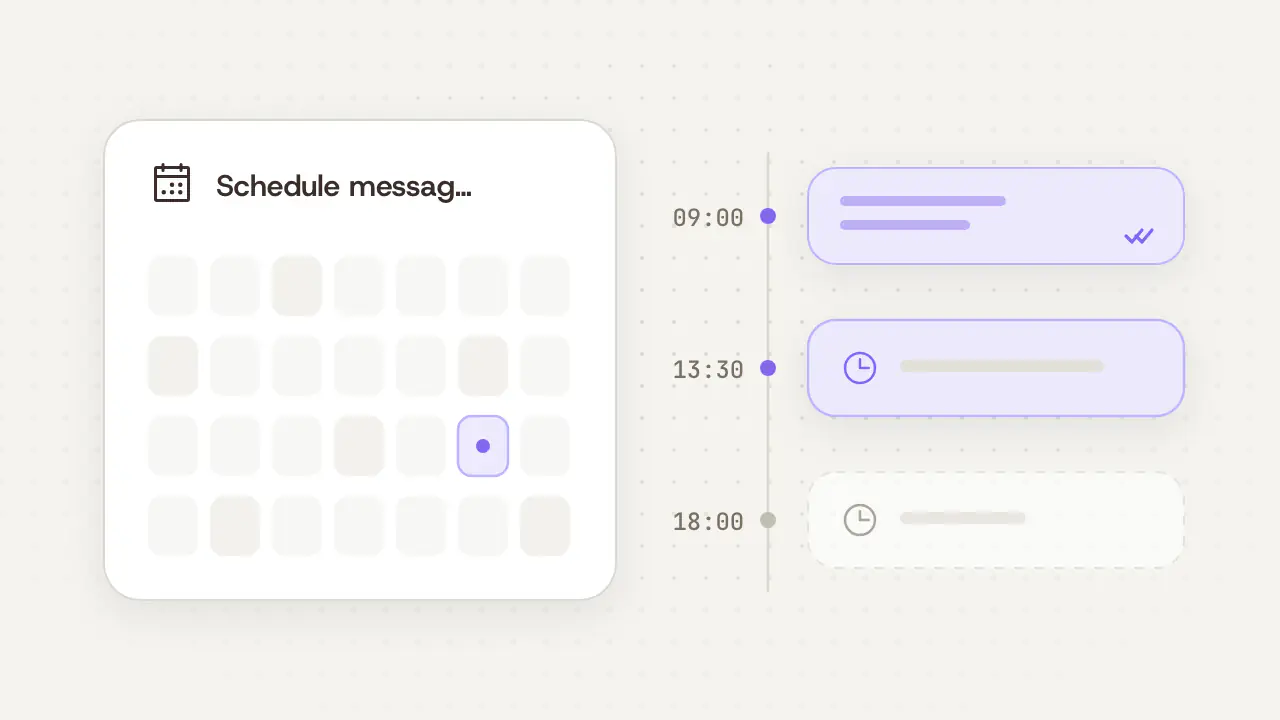
To schedule a message to a WhatsApp group, open the group, type the message, press and hold send and pick a time up to 14 days ahead. WhatsApp’s native option sends once and is managed only from the phone that scheduled it.
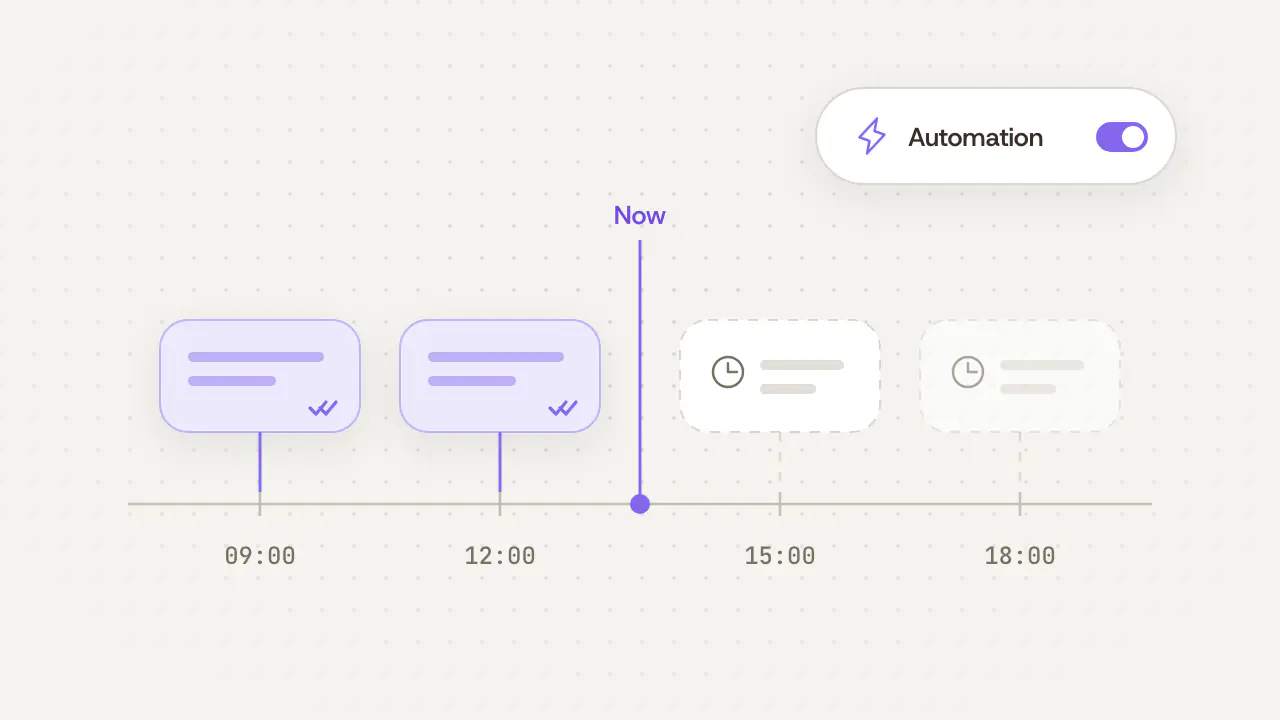
For recurring group updates that a team can pause, skip and audit, use a group scheduler such as SuperSkope.
How do I schedule a message to a WhatsApp group?
You need permission to post in the group. If an admin has limited Send new messages to admins, only admins can schedule there.
- Update WhatsApp and open the group.
- Type the message, or attach a photo or video.
- Press and hold the send button.
- Choose a date and time between 10 minutes and 14 days ahead, and confirm.
What are the limits for groups?
- One send per scheduled message; there are no repeating schedules.
- A maximum of 14 days ahead.
- Test versions sent the message only to members present when it was scheduled, so later joiners miss it.
- Each person schedules from their own phone, and others in your team cannot see or change it.
- Text, photos and videos only.
Native scheduling vs a group scheduler vs the official API
| WhatsApp native | SuperSkope group schedules | Official Groups API | |
|---|---|---|---|
| Which groups | Any group you can post in | Groups your connected number belongs to | Only groups created through the API, up to 8 people |
| Repeats | No | Daily, weekdays, weekly, monthly, with an end date | You build it |
| How far ahead | 14 days | Any future date | Any time your system sends |
| Content | Text, photos, videos | Text, PDF, PNG or JPEG (up to 5 MiB) | Text, media and templates |
| Team access | The phone that scheduled it | Shared workspace and scoped API | Your application |
| Pause or skip one | Delete only | Pause, resume, skip next | You build it |
| History | None beyond the chat | Sent, skipped and unconfirmed sends | Your logs and webhooks |
When does a group scheduler make sense?
- A coaching institute posting the next day’s timetable to each batch group every evening.
- A travel operator sending a departure checklist to each trip group three days before travel.
- A distributor sharing a weekly price-list PDF with dealer groups every Monday.
- A housing society reminding residents about monthly maintenance dues.
How do I set up a recurring group message in SuperSkope?
- Open Schedules and choose Schedule a message.
- Choose a group from the number’s groups.
- Write the message, or attach a PDF or image with a caption.
- Set the date and time and your time zone.
- Choose Repeat: every day, weekdays, every week or every month, and an optional end date.
- Save it, or save it paused to review first.
What happens if something goes wrong?
Schedules are built to fail visibly. If WhatsApp is disconnected and a send cannot start within 15 minutes of its due time, that occurrence is recorded as skipped instead of arriving late, and a repeating schedule moves on to its next time without sending a burst of missed messages. If a send was submitted but its outcome is unclear, it is marked unconfirmed and never repeated automatically; someone checks WhatsApp first. Pausing a schedule stops future sends, and deleting it keeps its history.
Keep scheduled group messages welcome
Schedule only into groups where the members expect those updates, keep the frequency sensible, and check the group’s rules if you are not an admin. A scheduler that posts promotions into groups people joined for something else will be reported, whichever tool sends it. SuperSkope connects your existing number as a WhatsApp linked device, the same way WhatsApp Web works. It is not the official WhatsApp Business Platform and is not affiliated with WhatsApp or Meta.
Frequently asked questions
Can I schedule a message in a WhatsApp community?
You can schedule into a community’s groups the same way as any group you can post in. In the announcement group only admins can post, so only admins can schedule there. WhatsApp has not published community-specific scheduling details.
Can I schedule the same message to several groups?
Natively you schedule one chat at a time. In SuperSkope each schedule targets one group, so you create a schedule per group; that keeps pausing and history clear for each one. Avoid posting identical promotions into many groups.
Can the official WhatsApp API schedule messages to my existing groups?
No. Meta’s Groups API only works with groups created through it, with up to 8 participants and an Official Business Account. Your system can time sends to those groups, but it cannot reach the normal groups you already run, and it cannot adopt them into the API.
Who receives a scheduled group message if members change?
Reports from WhatsApp’s test versions say a natively scheduled message goes to the people who were members when you scheduled it, so later joiners miss it. A SuperSkope schedule sends to the group as it is at send time, which suits rosters that change week to week.
Sources
- WhatsApp Blog: Say it at the right time with scheduled messages (25 Nov 2026)
- WABetaInfo: WhatsApp is testing scheduled messages for chats and groups
- Beebom: WhatsApp message scheduling rolling out, how it works (Android beta, 14 Oct 2026)
- WhatsApp Help Center: How to change group admin settings
- Meta for Developers: WhatsApp Groups API overview and limits